

Linux Basics for Security Research
Table of Contents
- Why Linux Is the Default Platform for Security Research
- The Linux Filesystem: Where Everything Lives
- Terminal Essentials
- File Permissions and Why They Matter
- Package Management
- Networking Commands You Will Use Constantly
- Bash Scripting Basics
- Hardware Interfaces: USB Passthrough and Monitor Mode
- Putting It Together: A Real Workflow
Why Linux Is the Default Platform for Security Research
Nearly every wireless security tool worth using runs on Linux. Not because the developers are ideological - because Linux gives you direct access to hardware in ways that macOS and Windows deliberately restrict.
When you need to put a WiFi adapter into monitor mode, Linux exposes the wireless subsystem through cfg80211 and nl80211. When you need to inject raw 802.11 frames, the kernel lets you write directly to a monitor-mode interface. When you need to capture BLE advertising packets, the BlueZ stack gives you raw HCI access.
Windows and macOS abstract these layers away to protect stability. That is a reasonable design choice for consumer operating systems. It just happens to be the opposite of what security researchers need.
Tools like aircrack-ng, Wireshark (with wireless capture), hcxdumptool, bettercap, and Kismet all assume a Linux environment. Some have partial ports to other platforms, but the full feature set - especially anything involving packet injection or raw frame capture - only works on Linux.
The BLEShark Nano itself runs on an ESP32-C3 with its own firmware, so it does not require Linux to operate. But when you want to analyze the PCAP files it captures, crack a WPA2 handshake, or build custom tools that interact with wireless protocols, Linux is where that happens.
graph TB
    A[Security Researcher] --> B[Linux Operating System]
    B --> C[Kernel: cfg80211 / nl80211]
    B --> D[BlueZ: BLE/BT Stack]
    B --> E[Userspace Tools]
    C --> F[Monitor Mode]
    C --> G[Packet Injection]
    D --> H[HCI Raw Access]
    D --> I[BLE Scanning]
    E --> J[aircrack-ng]
    E --> K[Wireshark]
    E --> L[hcxdumptool]
    E --> M[bettercap]
    F --> N[802.11 Frame Capture]
    G --> N
    H --> O[Bluetooth Analysis]
    I --> O

A typical bash terminal session - where security researchers spend most of their time (Wikimedia Commons)
The Linux Filesystem: Where Everything Lives
Linux does not have drive letters. Everything hangs off a single root directory: /. Plug in a USB drive and it shows up as a directory under /media or /mnt. Connect a WiFi adapter and it appears as a device file under /dev.
The directories that matter most for security research:
-
/home/username- your files, scripts, captures, wordlists -
/usr/binand/usr/sbin- installed programs (aircrack-ng, nmap, etc.) -
/etc- system configuration files (network interfaces, hostapd configs) -
/dev- device files (your WiFi adapter shows up here) -
/tmp- temporary files, cleared on reboot -
/var/log- system logs (useful when debugging driver issues) -
/procand/sys- virtual filesystems exposing kernel state
When a tool says it saved output to ~/captures/, the tilde ~ means your home directory. So that is /home/yourname/captures/.
One important detail: Linux is case-sensitive. Captures and captures are two completely different directories. This trips up people coming from Windows regularly.
Terminal Essentials
The terminal is where you will spend most of your time. GUI tools exist for some tasks, but the command line is faster, scriptable, and available on every Linux machine - including headless VMs and remote servers.
Navigation:
-
pwd- print working directory (where am I?) -
ls- list files (ls -lashows hidden files and permissions) -
cd /path/to/dir- change directory (cd ..goes up one level) -
find / -name "*.pcap"- search the entire filesystem for PCAP files -
locate filename- faster search using a pre-built index
File operations:
-
cat file.txt- print file contents -
less file.txt- page through a file (q to quit) -
head -n 20 file.txt- first 20 lines -
tail -f /var/log/syslog- watch a log file in real time -
grep "EAPOL" capture.txt- search for a string in a file -
cp,mv,rm- copy, move, delete
Process management:
-
ps aux- list all running processes -
kill PID- stop a process by its ID -
Ctrl+C- interrupt the current command -
command &- run in background -
jobsandfg- manage background processes
Pipes and redirection are what make the terminal powerful. The pipe character | sends the output of one command into the input of another:
airodump-ng wlan0mon 2>&1 | grep "MyNetwork"
That runs airodump-ng and filters the output to show only lines containing "MyNetwork". The > operator redirects output to a file: nmap -sV 192.168.1.0/24 > scan_results.txt.
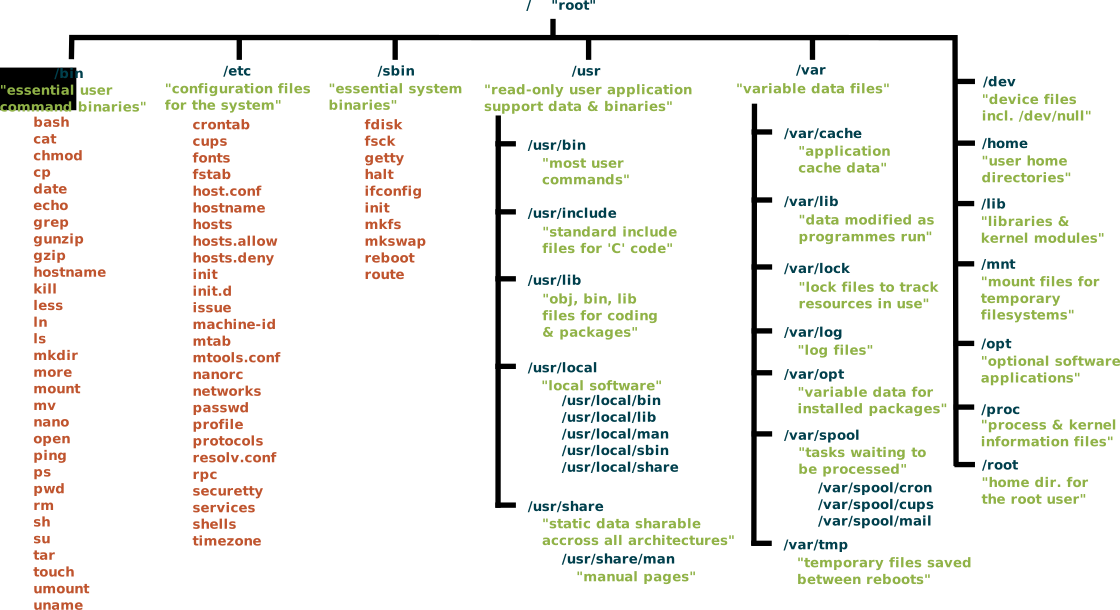
The standard Unix/Linux filesystem hierarchy - every directory has a specific purpose (Wikimedia Commons, CC BY-SA)
File Permissions and Why They Matter
Linux controls access to every file and device with a permission system based on three categories: owner, group, and others. Each gets read (r), write (w), and execute (x) permissions.
When you see -rwxr-xr-- in an ls -l listing, that breaks down as:
- Owner: rwx (read, write, execute)
- Group: r-x (read and execute, no write)
- Others: r-- (read only)
For security research, permissions matter because most wireless tools need root access. Putting an adapter into monitor mode, injecting packets, binding to low-numbered ports - these all require elevated privileges.
The sudo command runs a single command as root:
sudo airmon-ng start wlan0
Running sudo su or sudo -i gives you a root shell. Be careful with this. Root can delete anything, overwrite system files, and brick your installation. Use sudo for individual commands whenever possible.
Scripts need execute permission before they can run. If you write a script called scan.sh, you need to chmod +x scan.sh before ./scan.sh will work. Without the execute bit, the kernel refuses to run it regardless of what is inside.
Package Management
Linux distributions use package managers to install, update, and remove software. The two most common for security research are:
Debian/Ubuntu/Kali (APT):
-
sudo apt update- refresh package lists -
sudo apt install aircrack-ng- install a package -
sudo apt upgrade- upgrade all installed packages -
apt search wireshark- search for packages
Arch/BlackArch (pacman):
-
sudo pacman -Syu- sync and upgrade -
sudo pacman -S aircrack-ng- install a package
Kali Linux comes with most security tools pre-installed. If you are using a standard Ubuntu or Debian installation, you will need to add repositories and install tools individually. Some tools (hcxdumptool, bettercap) may need to be compiled from source for the latest version.
Python tools often use pip: pip install scapy. Use virtual environments (python3 -m venv myenv) to avoid conflicts between system packages and pip-installed packages.
Networking Commands You Will Use Constantly
These are the commands that show up in every wireless security workflow:
Interface management:
-
ip addr(orifconfig) - show network interfaces and IP addresses -
ip link set wlan0 up/down- enable/disable an interface -
iwconfig- show wireless-specific interface info (mode, channel, frequency) -
iw dev wlan0 info- detailed wireless interface information -
iw phy phy0 info- show supported modes, frequencies, and capabilities
Monitor mode:
-
sudo airmon-ng start wlan0- put adapter in monitor mode (creates wlan0mon) -
sudo airmon-ng stop wlan0mon- return to managed mode -
sudo iw dev wlan0 set type monitor- manual monitor mode (after bringing interface down)
Diagnostics:
-
ping 8.8.8.8- basic connectivity test -
traceroute 8.8.8.8- show the path packets take -
ss -tlnp- show listening TCP ports (replaced netstat) -
dig example.com- DNS lookup -
arp -a- show the ARP table -
route -norip route- show the routing table
Capture and analysis:
-
tcpdump -i wlan0 -w capture.pcap- capture packets to a file -
tshark -r capture.pcap -Y "eapol"- Wireshark's CLI for filtering PCAP files
flowchart LR
    subgraph Recon
        A[ip addr] --> B[iwconfig]
        B --> C[iw phy info]
    end
    subgraph Capture
        C --> D[airmon-ng start]
        D --> E[airodump-ng]
        E --> F[.pcap file]
    end
    subgraph Analysis
        F --> G[tshark / Wireshark]
        F --> H[aircrack-ng]
        F --> I[hashcat]
    end
    subgraph Report
        G --> J[grep / awk filtering]
        H --> K[cracked PSK]
        J --> L[findings.txt]
        K --> L
    end
A typical wireless security assessment workflow on Linux - from interface reconnaissance through capture and analysis to reporting.
Bash Scripting Basics
Once you find yourself typing the same sequence of commands repeatedly, it is time to write a script. A bash script is just a text file with commands, one per line, starting with #!/bin/bash.
A simple example that scans for WiFi networks and saves the results:
#!/bin/bash
# Quick WiFi scan script
INTERFACE="wlan0"
OUTPUT="scan_$(date +%Y%m%d_%H%M%S).txt"

echo "[*] Starting scan on $INTERFACE"
sudo iw dev $INTERFACE scan | grep -E "SSID|signal|freq" > "$OUTPUT"
echo "[*] Results saved to $OUTPUT"
echo "[*] Networks found: $(grep -c 'SSID:' $OUTPUT)"
Variables are assigned without spaces around the = sign. Reference them with $VARIABLE. The $(command) syntax runs a command and captures its output.
Conditionals and loops:
#!/bin/bash
# Check if running as root
if [ "$EUID" -ne 0 ]; then
    echo "This script requires root. Run with sudo."
    exit 1
fi

# Loop through a list of channels
for channel in 1 6 11; do
    echo "Scanning channel $channel"
    iw dev wlan0 set channel $channel
    sleep 2
done
As your scripts get more complex, you will probably switch to Python. But bash scripts remain the fastest way to glue together a sequence of CLI tools.

Kali Linux - the most popular security-focused Linux distribution, pre-loaded with hundreds of tools (Kali.org / Wikimedia Commons)
Hardware Interfaces: USB Passthrough and Monitor Mode
External USB WiFi adapters are essential for wireless security work because built-in laptop WiFi cards rarely support monitor mode or packet injection on Linux. The most common chipsets that work reliably:
- Realtek RTL8812AU - dual-band, requires out-of-tree driver (aircrack-ng maintains a fork)
- Atheros AR9271 - 2.4GHz only, excellent Linux support with ath9k_htc
- Ralink RT3070 - 2.4GHz, good injection support
- MediaTek MT7612U - dual-band, newer option with improving support
When you plug in a USB adapter, check dmesg | tail to see if the kernel recognized it and loaded a driver. If no driver loaded, lsusb gives you the vendor and product ID so you can find the right driver.
If you are running Linux in a virtual machine, you need USB passthrough configured so the VM can access the physical adapter. In VirtualBox, this is under Settings > USB > Add Filter. VMware Workstation handles it through the Removable Devices menu. Without passthrough, the VM only sees the virtual network adapter, which cannot do monitor mode.
The BLEShark Nano connects over USB as well, appearing as a serial device (/dev/ttyUSB0 or /dev/ttyACM0). You can access its file portal through a browser, but if you are scripting interactions, screen /dev/ttyUSB0 115200 or minicom give you serial console access.
Putting It Together: A Real Workflow
Here is what a typical wireless assessment looks like from the Linux command line, start to finish:
1. Identify your wireless adapter and check capabilities:
iw phy phy0 info | grep -A 10 "Supported interface modes"
2. Kill processes that interfere with monitor mode:
sudo airmon-ng check kill
3. Start monitor mode:
sudo airmon-ng start wlan0
4. Scan for networks:
sudo airodump-ng wlan0mon
5. Target a specific network (for authorized testing):
sudo airodump-ng -c 6 --bssid AA:BB:CC:DD:EE:FF -w capture wlan0mon
6. Analyze the capture:
tshark -r capture-01.cap -Y "eapol" -T fields -e wlan.sa -e wlan.da
Every step happens in the terminal. Every output can be piped, filtered, saved, and scripted. That is why Linux is the platform for this work - it gets out of your way and lets you interact with the hardware and protocols directly.
The BLEShark Nano complements this workflow. It captures WPA2 handshakes and saves them as PCAP files that you can transfer to your Linux machine for analysis with aircrack-ng or hashcat. It runs WiFi and BLE scans from your pocket. And with the Shiver mesh network, up to 16 Nano nodes can coordinate scanning across all 2.4GHz channels simultaneously - something that would require 16 separate USB adapters on a Linux machine.